Contents:
- Contents:
- Introduction
- Inside the Box
- Installing the Base ring
- Downloading the App
- Setting the App
- Using anchorvate
- Charging
- FAQs
Introduction
Congratulations on your purchase of Anchorvate, an innovative solution to keep track of the anchor chain with your Smartphone! This user manual will provides instructions on how to install and use the device.
Inside the Box
- Inside the box you will find the anchorvate device with the base ring fitted to it. The base ring is fitted to the Windlass using VHB adhesive pads and Anchorvate is clipped on it when needed. To unclip the base ring, hold the ring in hand and twist Anchorvate 90 degrees in a clockwise manner when looking at the base ring.
Base Ring:

Clip Side

3M VHB Mounting Pads
Anchorvate:

On / Off Switch

Charging Port
Installing the Base ring
- Remove the base ring – by twisting it from the device in a clockwise manner when looking at the base ring.
2. Clean the mounting surface – The Base ring must be mounted on the rotating face of the windlass. (horizontally or vertically). Make sure that the surface is clean and dry. A final wipe with acetone or surface cleaner is recommended.
3. Mark the position (Optional) – Before peeling the tape, place the ring on the windlass and use masking tape to mark the position to have it as centered as possible
3. Fit the ring – Peel the tape from the 3 red mounting pads (3M VHB tm) carefully and avoid touching the pads with your fingers as it can weaken the bond. Press the ring firmly to the winch drum keeping it as centered as possible. Apply firm pressure for 30-60 seconds.
4. Allow 24 hours for bond to set – DO NOT fit anchorvate on the base ring immediately. Please allow 24 hours as the base ring mounting pads will reach 50% of their strength in 20 mins, 90% in 24 hours and full strength in 72 hours.
Downloading the App
The anchorvate device requires the companion mobile application to operate. The app is available for the following platforms:
- Android
Open Google play store and search [anchorvate] or open your device’s camera / QR scanner and scan the QR code below:

To update qrcode
Download and install the application
2. Apple iOS
Open the Apple App Store and search [anchorvate] or open the camera app / QR scanner and scan the QR code below:

Download and install the application. It is important to allow All requests for permissions as otherwise the app will not function correctly.
to update qrcode
[Note: To use the app the smartphone must have location and Bluetooth switched on]
[Note: To use the app the anchorvate device must be switched on and it will connect to the app automatically]
Setting the App
[Note: Settings can only be modified when Anchorvate is switched on and connected to the app]
The anchorvate device allows for 2 settings:
Rotation Direction
This sets the direction in which the windlass turns when lowering chain.
If the windlass rotates Clockwise when looking at it from the side Anchorvate is attached then this setting must by set to ‘Y’. If it rotates Anticlockwise, the setting must be set to ‘N’.
To adjust the setting, open the app and wait for it to connect to anchorvate. Then select [Settings] and enter ‘Y’ or ‘N’ as required. Press [Save].
Units/Rotation
The anchorvate device is configured for a Lofrans Windlass with standard Gypsy Diameter of 0.38m of chain per rotation. If your windlass has a different setting it can be modified in 2 manners:
- Manual Measurement: Mark the chain and windlass gypsy on a specific point using a marker. Turn the windlass 360 degrees and marking again the chain at the same point on the gypsy. Measure the distance between the 2 marks on the chain. Open the app, select [Settings] and enter the measurement directly and press [Save]. The measure is to be entered in the same units that you want to measure the chain. (Meters or Feet).

2. Measure by calibration: Anchorvate can be calibrated automatically as follows:
- Mark the chain at a specific length (eg: 5m)
- Open Settings and confirm that the rotation direction is correct and adjust if necessary as described above.
- Press the Calibrate Function
- Lower the anchor up to the marked point and stop the Windlass
- Press STOP on the App.
- Enter the length of chain lowered (eg. 5 or 10) and press submit.
- The Gypsy value will be calculated automatically and the system is now ready to use.
Using anchorvate
Normal operation is as follows:
- Mount Anchorvate on the base ring and turn it Anti Clock Wise to lock it in. (The Base ring must have bonded for more than 24 hours before first use)
- Switch on by pressing the power button – The LED on the switch button should light up.
- Make sure that Blue tooth and location (gps) are enabled on the Smart phone and open the Anchorvate app
- The Anchorvate app will first show as Disconnected.
- When Bluetooth connectivity has been established the app is ready for use and will change as shown below:
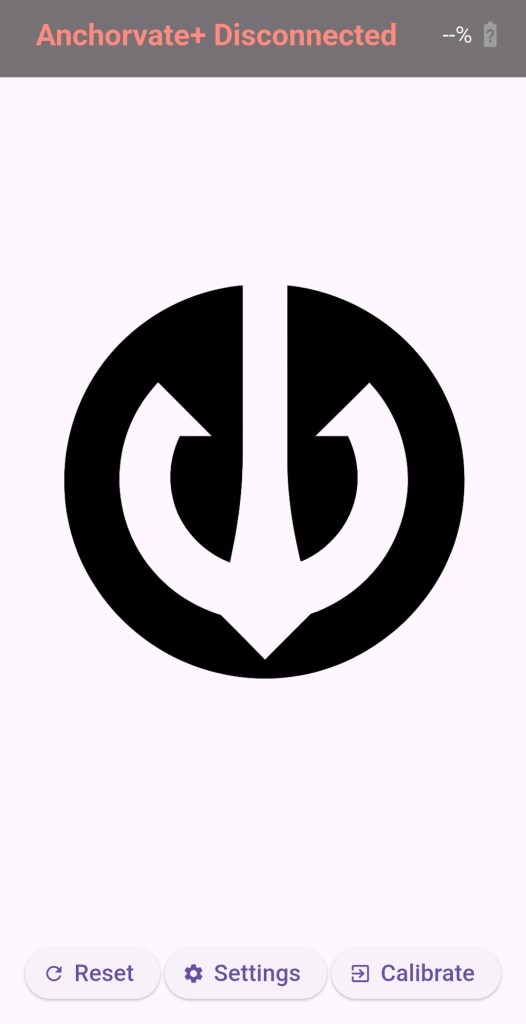
Disconnected
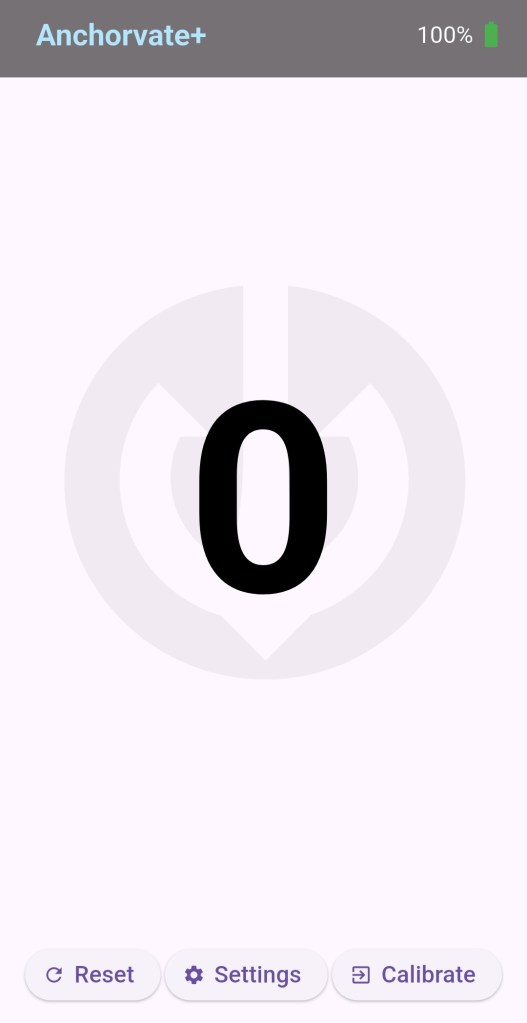
Connected and ready for use
Once connected, you can use the windlass and the app will show the length of chain deployed as the windlass goes down or up.
The device and the app can be powered off and when switched on again they will still show the length of chain deployed.
The number can be reset to 0 at any time by pressing RESET.
[Note: Anchorvate can be switch on and off and still keep track of the chain. as long as it is switched on before operating the windlass]
Charging
- The user can view the charge level of Anchorvate through the app. When the battery is low it can be charged with a standard USB-C charger.
- A full battery will provide more than 24 hours of continuous use
FAQs
I have installed the app but I cannot do anything?
Ensure the the smartphone has Bluetooth and Location (GPS) switched on. The anchorvate device must also be switched on. After a few seconds the device will connect to the app and all app features will be enabled.
If the app still does not connect, uninstall the anchorvate app and reinstall it from the play store and make sure that all requests for permissions are allowed.
The app has connected to the device but the counter is remaining 0 when lowering chain?
This happens if the direction of Rotation is not correct. Open the app and change the rotation in the settings as described in the user manual.
The counter on the app is not giving accurate readings?
Check the Gypsy measurement in the Settings and adjust as necessary using manual measurement or Calibration as described in the user manual.
The device is not switching on?
This could be to a complete battery discharge. Switch off the device and charge it using a USB-C charger.
 Sparkvate - Empowering you with innovations for every day use